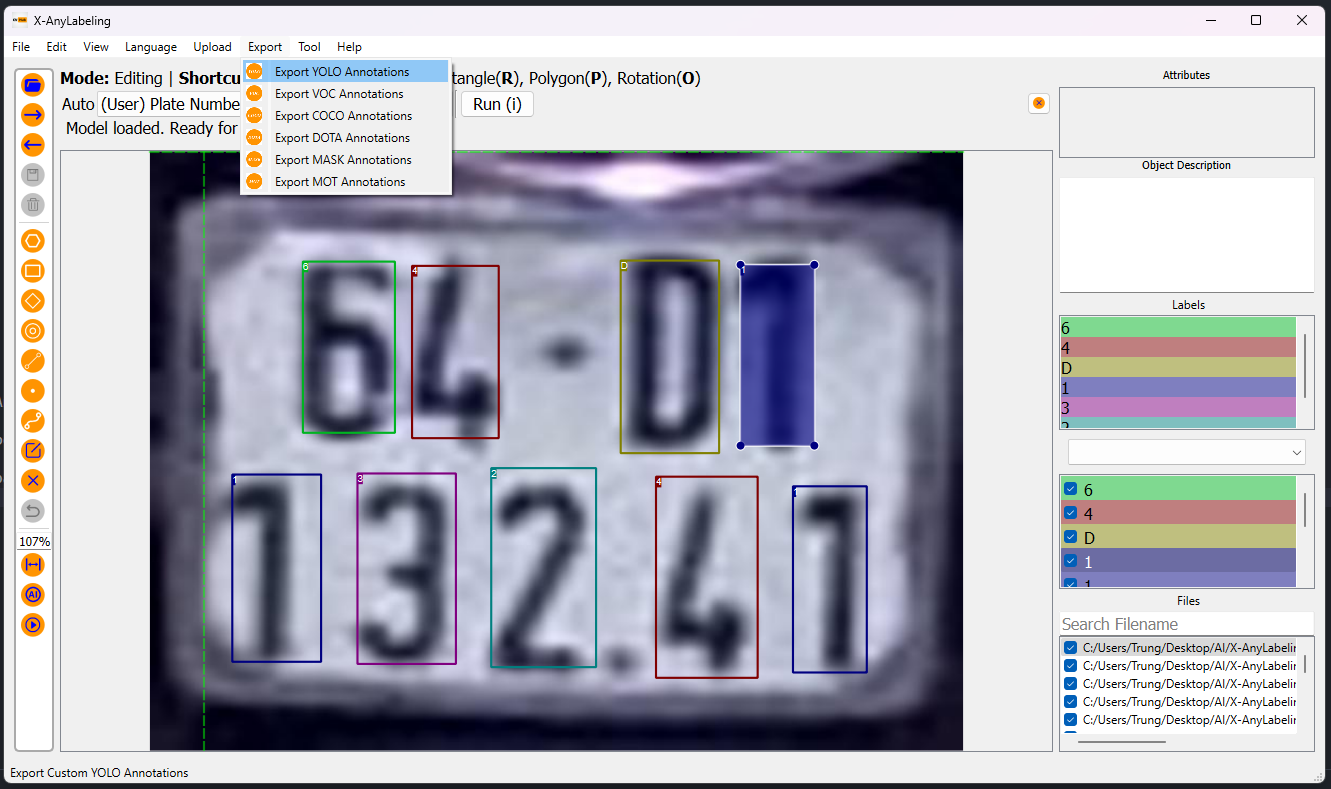
Appearance
Training model cho X-AnyLabeling
- Model OCR biển số xe đã được train, có thể sử dụng thử ngay: Plate Number OCR - YOLOv8 (onnx)
Chuẩn bị dữ liệu
- Dữ liệu label có format VOC: Ví dụ coco8.zip
Upload datasets
- Truy cập vào https://hub.ultralytics.com/datasets
- Chọn
Upload Dataset - Chọn file zip đã chuẩn bị
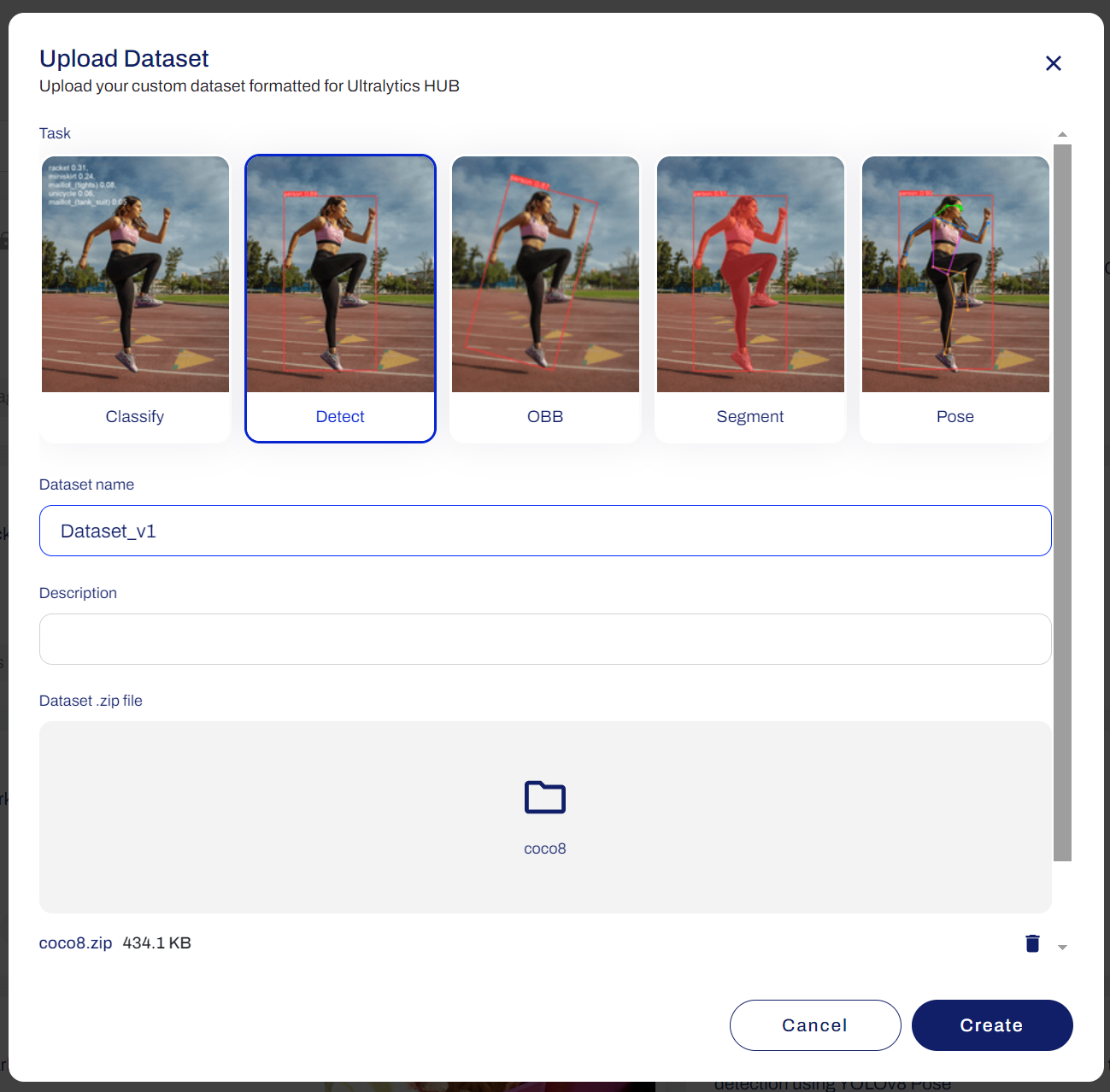
Training model hỗ trợ gắn label
- Truy cập vào https://hub.ultralytics.com/models
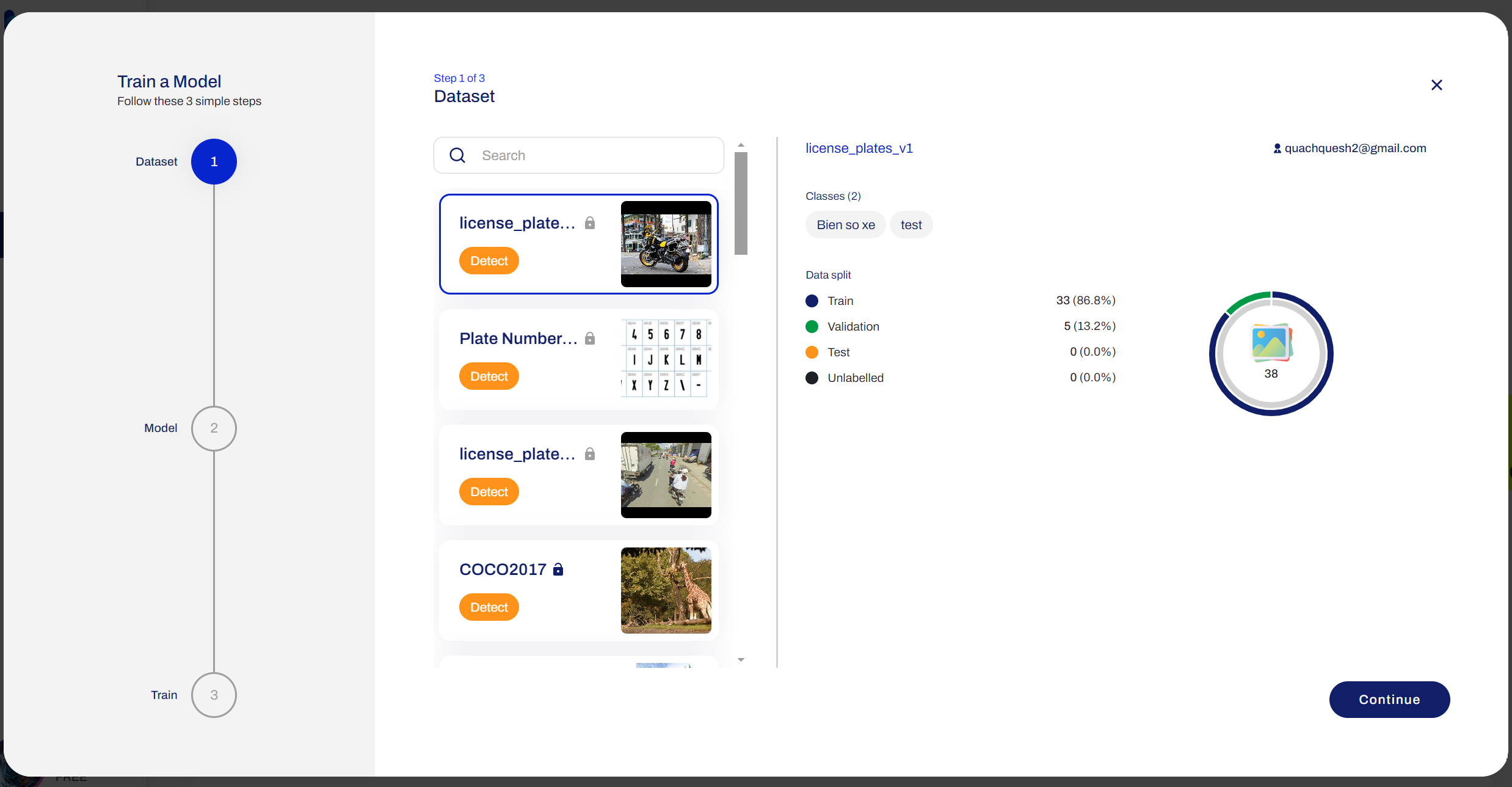
- Chọn
Train Model - Chọn dataset đã upload
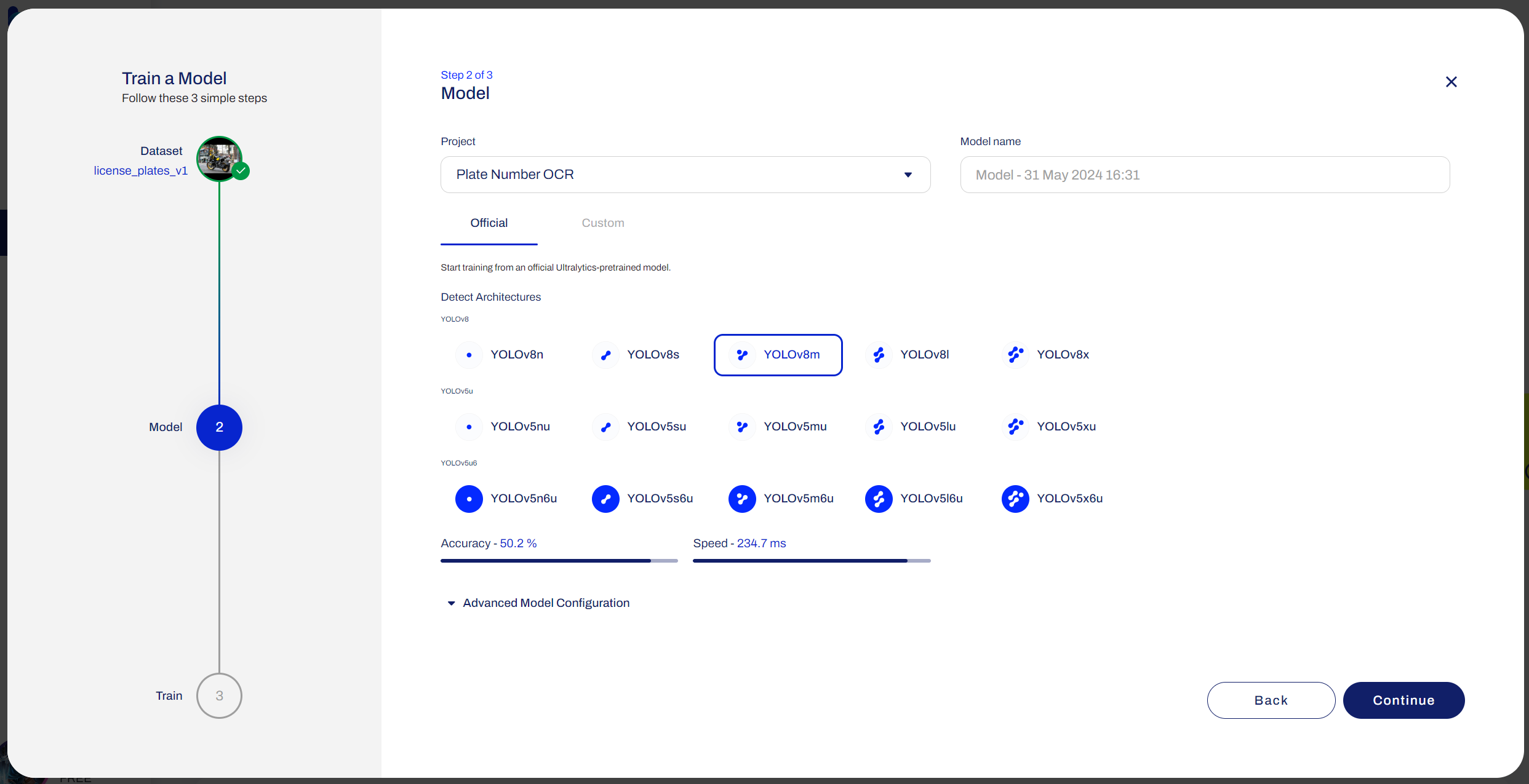
- Chọn model đã được ultralytics Training
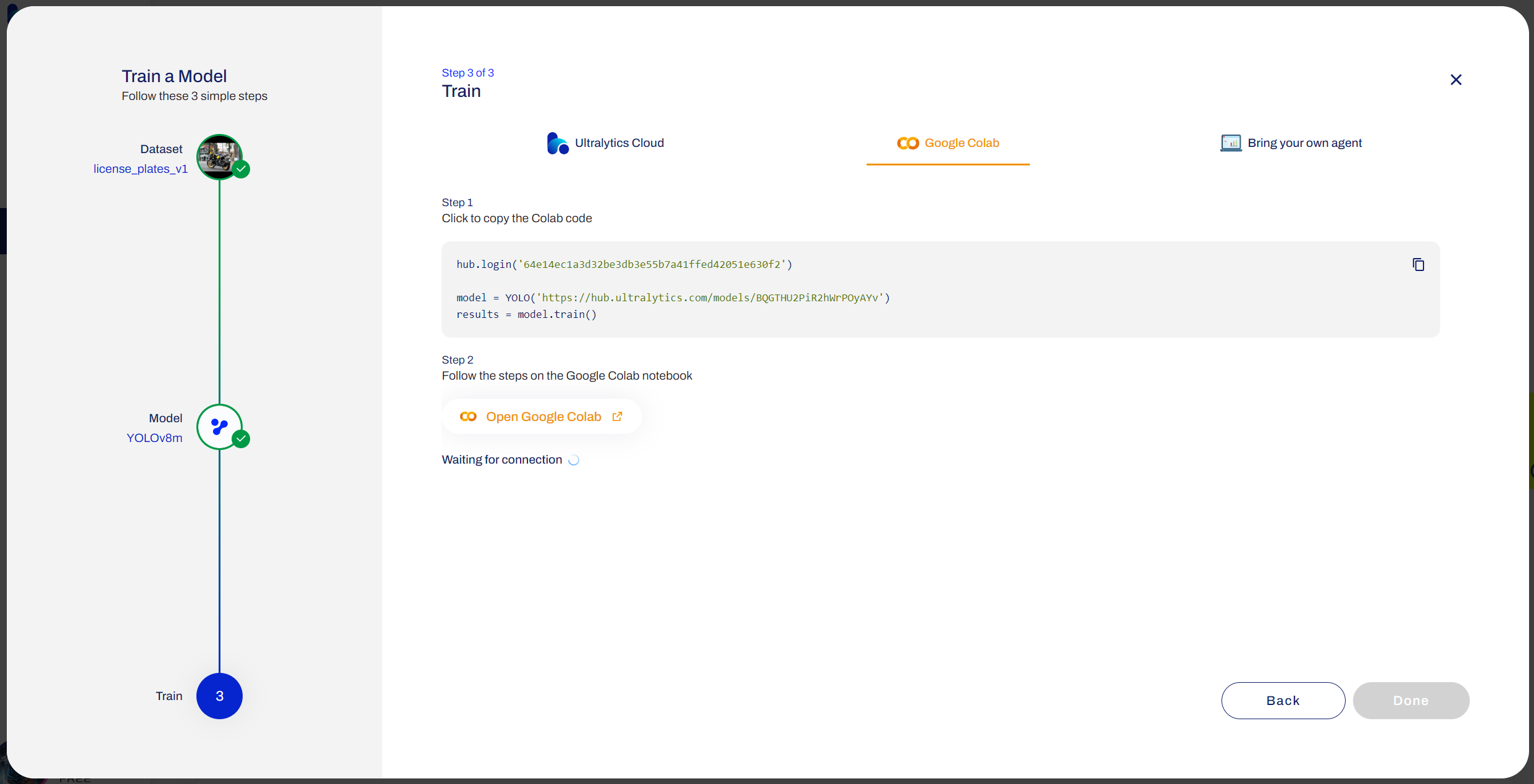
- Làm theo hướng dẫn để Traning model (Training trên Google Colab)
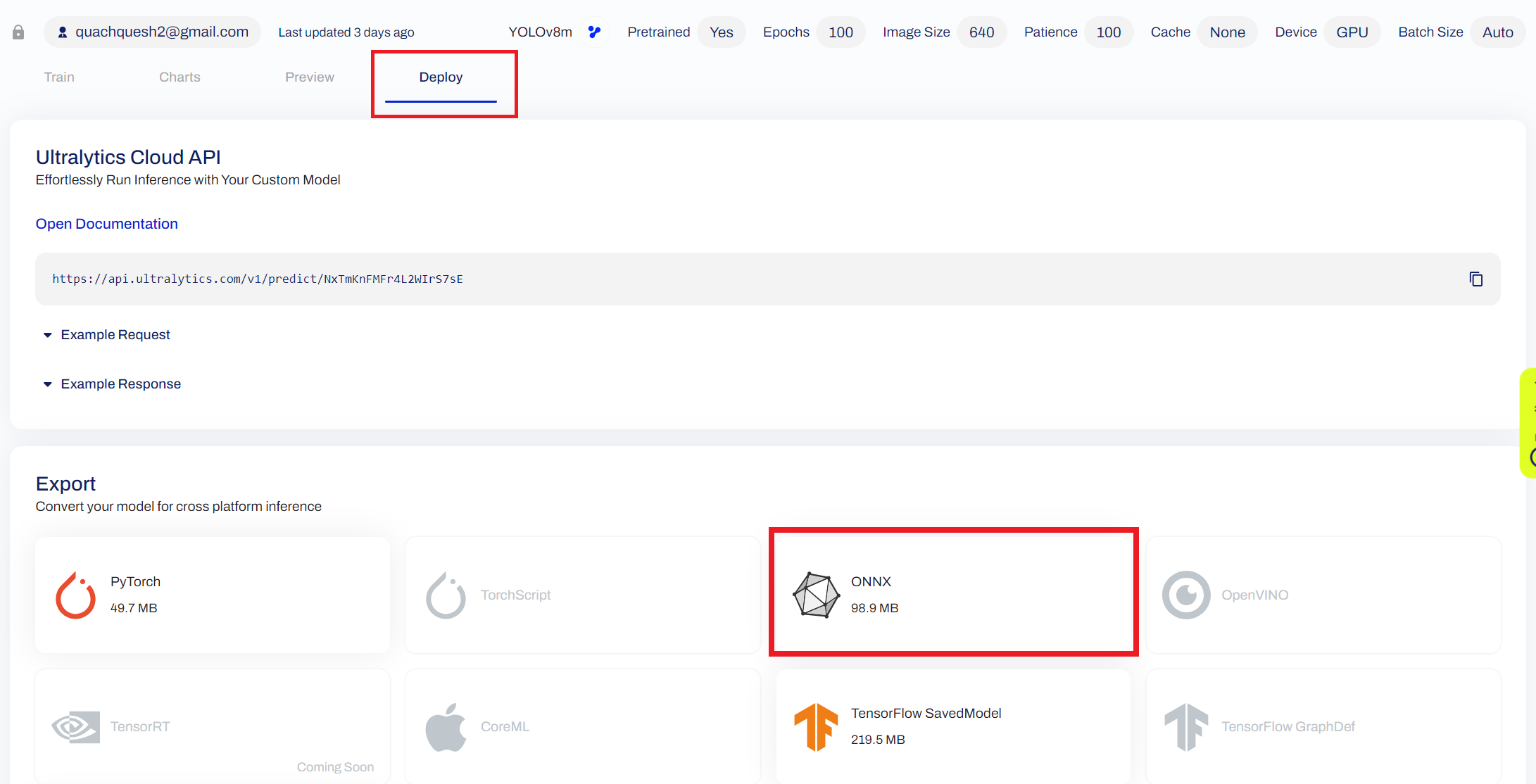
- Sau khi traning xong thì download model ONNX
Config AI model
- Copy file model ONNX vừa download vào 1 folder va đổi tên thành
model.onnx - Tạo file config:
model.yaml - Đay là config mẫu cho model OCR biển số xe:
yaml
type: yolov8
name: plate-number-OCR-r20230520
display_name: Plate Number OCR
model_path: model.onnx # path to model file
nms_threshold: 0.45
confidence_threshold: 0.25
classes:
  - 0
  - 1
  - 2
  - 3
  - 4
  - 5
  - 6
  - 7
  - 8
  - 9
  - A
  - B
  - C
  - D
  - E
  - F
  - G
  - H
  - I
  - J
  - K
  - L
  - M
  - N
  - O
  - P
  - Q
  - R
  - S
  - T
  - U
  - V
  - W
  - X
  - Y
  - Z
Sử dụng AI trong X-AnyLabeling
- Sau khi đã config AI model, chúng ta có thể sử dụng AI model trong X-AnyLabeling
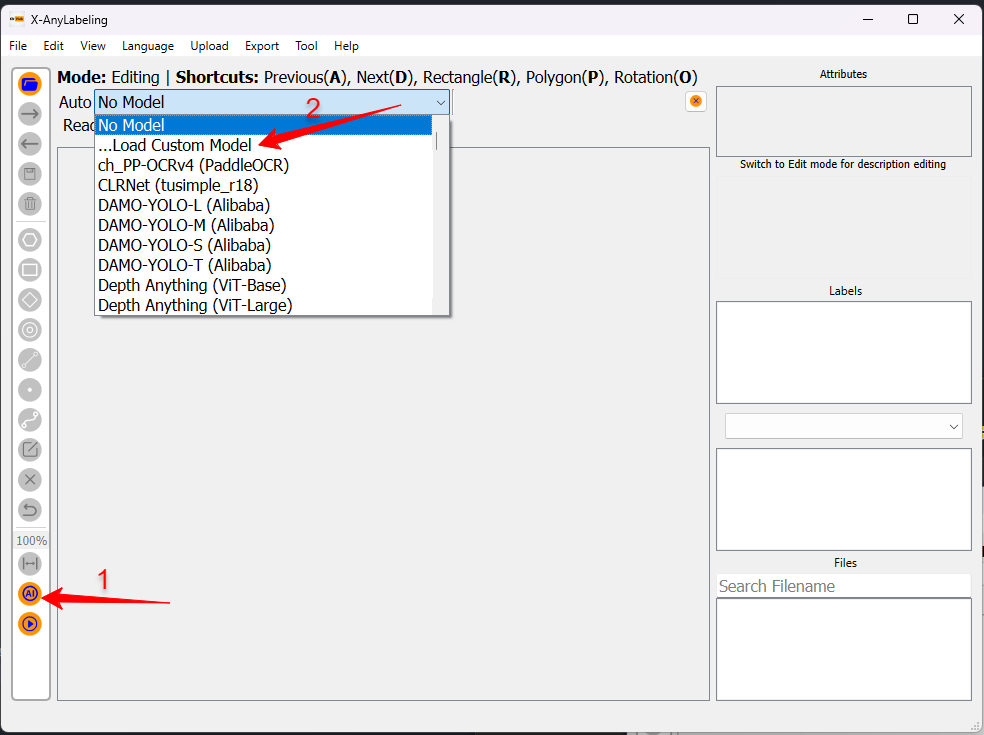
- Sau khi load custom model, chúng ta có thể sử dụng AI model để gắn label cho ảnh
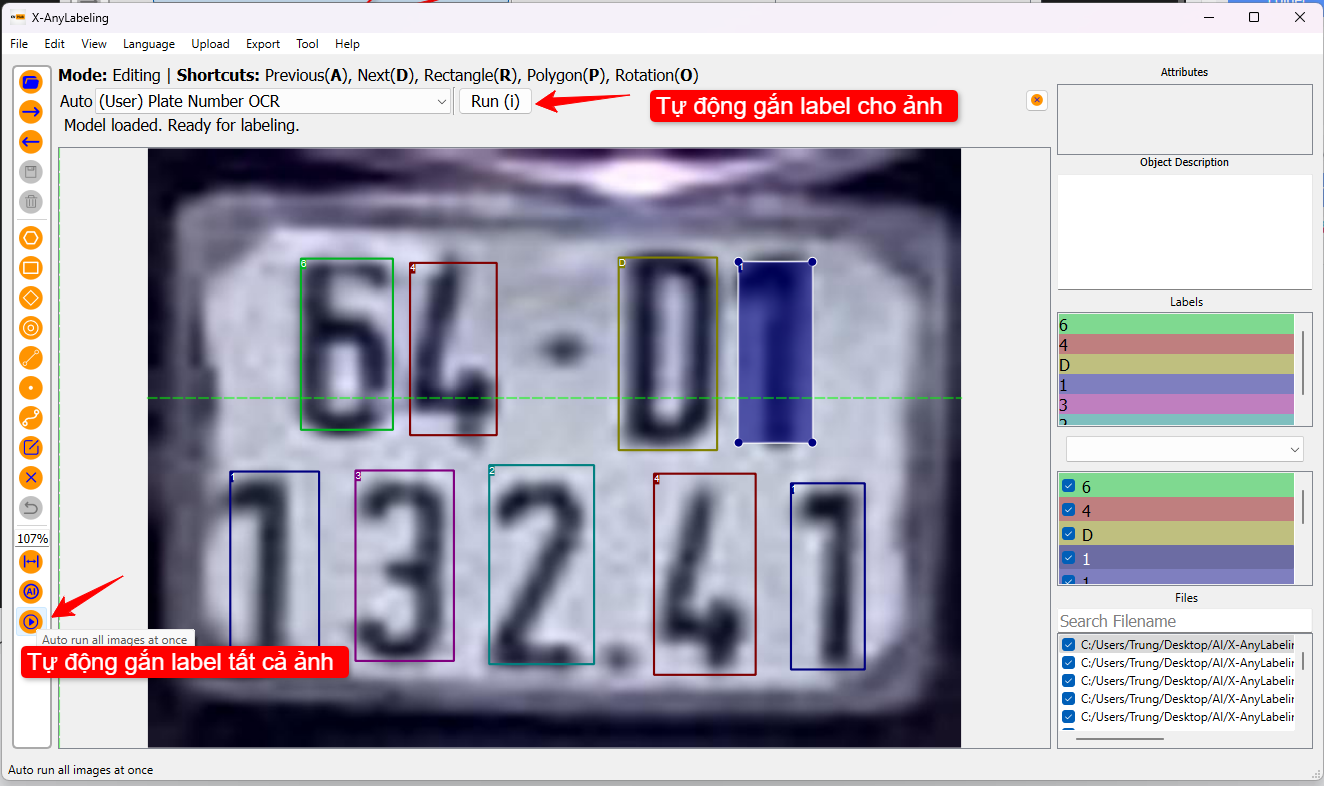
- Có thể chọn gắn label tự động từng ảnh hoặc gắn label tự động cho toàn bộ ảnh
- Export Annotations theo format mong muốn